Hear your part: the equalizer in Practice Player
In many recordings your part is hard to hear. The drums cover the bass line, and the other instruments cover the vocal or the viola line. The equalizer in Practice Player raises the frequencies where your part sits and lowers the others, so it does not separate the instruments, but it can make your part much easier to follow.
Open the equalizer
- Open a song and tap Controls.
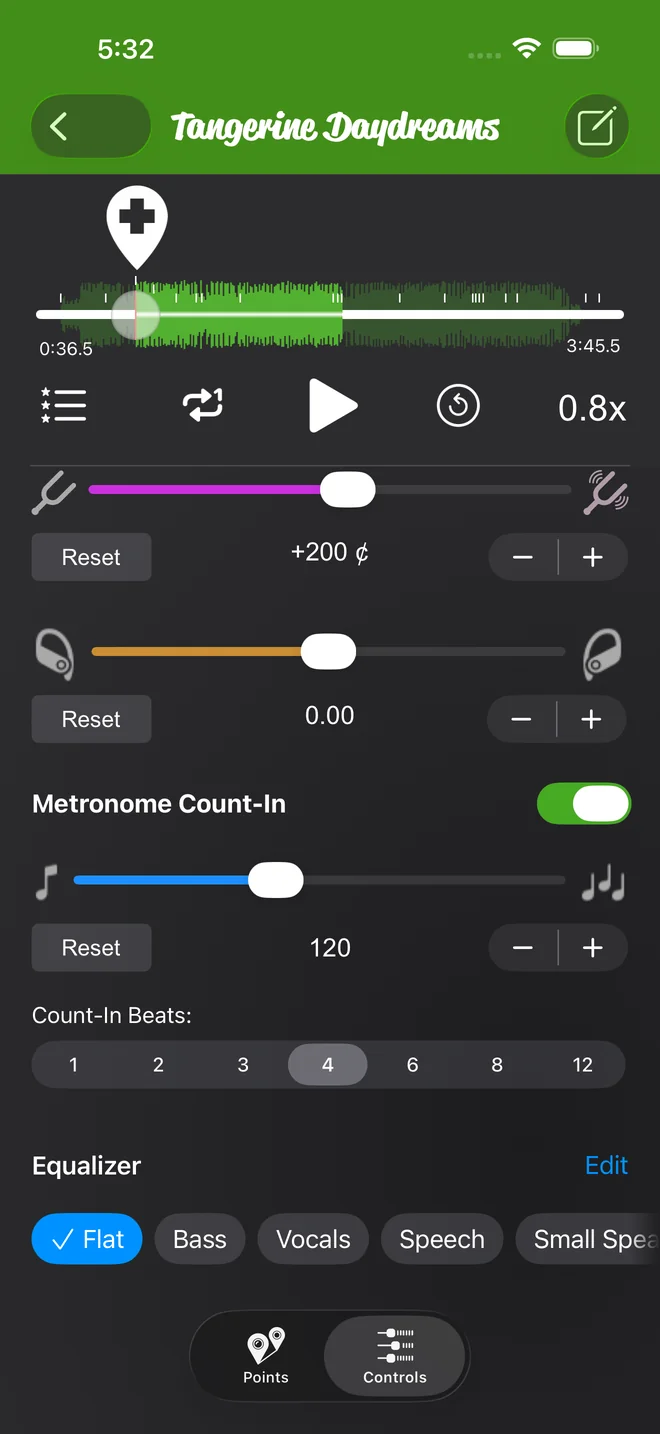
- Scroll to the bottom, where the Equalizer row is under Metronome Count-In. Its preset chips are right on the row, and once a preset is on, a small drawing of the curve appears beside Edit.
- Tap Edit for the full editor, which opens right there on the Controls tab. Tap Done to close it.
The equalizer is free, with no upgrade needed, and with the Flat preset it is off, so every song sounds the same as before until you choose something else. Nothing changes until you do.
Pick a preset
The row of chips is the preset list, in this order: Flat, Bass, Vocals, Speech, Small Speaker, Bass Focus and Mid Focus. Tap a chip. The song changes right away.
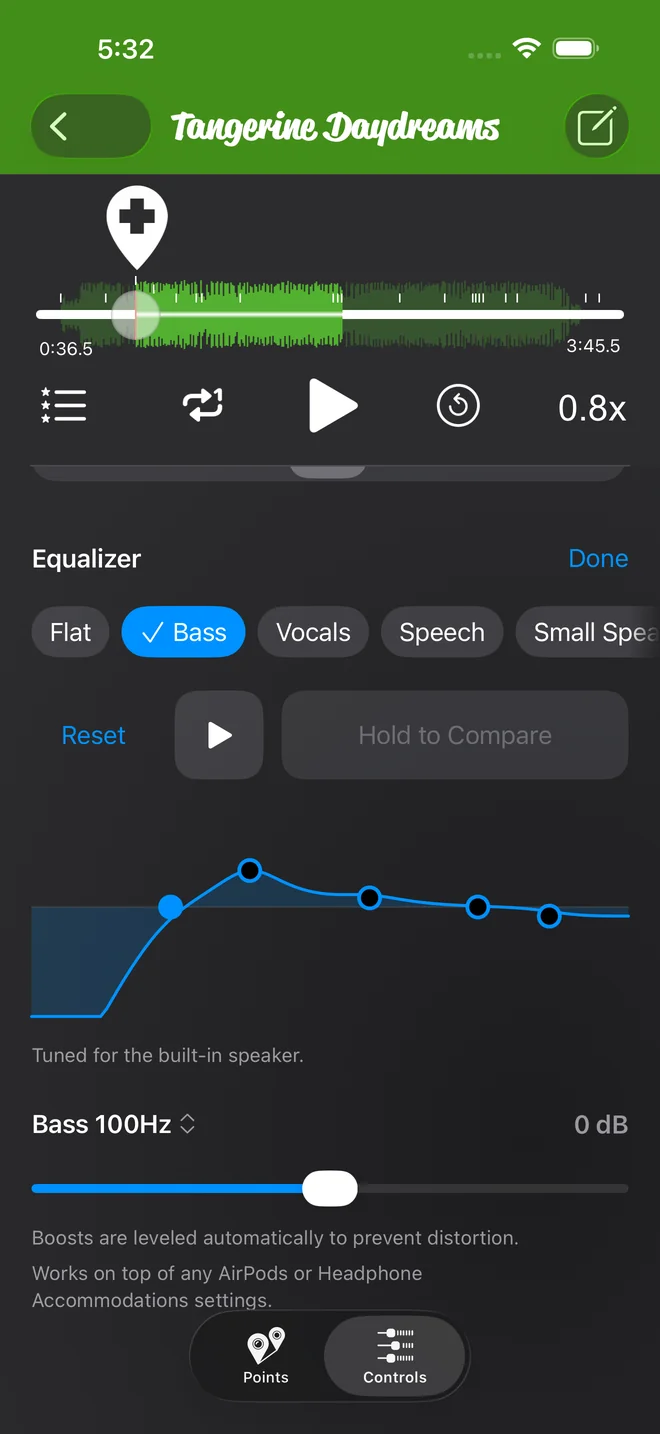
- Bass raises the low frequencies of the whole song.
- Bass Focus keeps the bass and cuts most of the middle and high frequencies. Use it to learn a bass line.
- Mid Focus cuts the low and high frequencies and raises the middle. Use it for a part in the middle of the range, such as a viola line or a rhythm guitar.
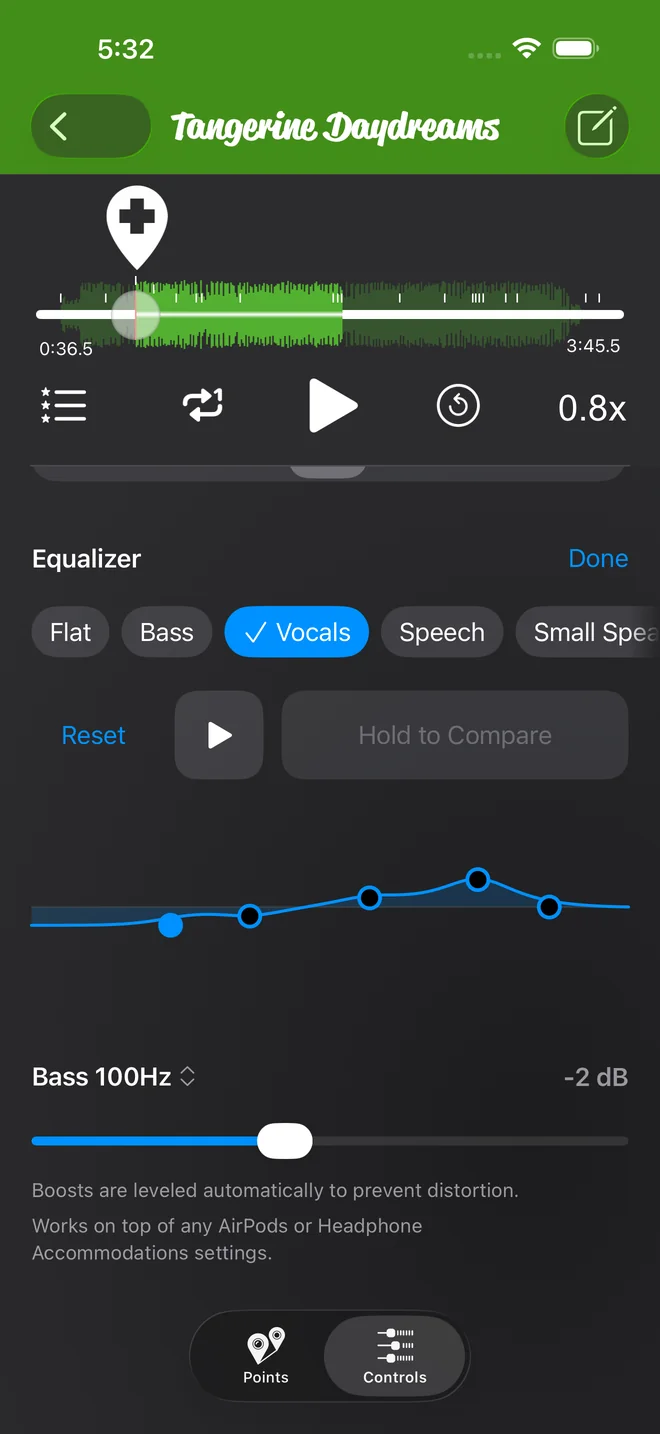
- Vocals makes a voice clearer.
- Speech is for spoken words, such as a recorded lesson.
- Small Speaker is for a small speaker that plays little bass.
To check that a preset helps, press and hold Hold to Compare while the song plays, and you hear the song without the equalizer until you let go. It only works while the song plays, so there is a Play button beside it. I hold it a few times before I choose a preset.
Shape your own curve
A preset is a starting point. The curve has five handles, one for each band: Bass, Low Mid, Mid, Presence and Treble.
- Drag a handle up or down to change its gain, in steps of 1 dB, from -12 dB to +12 dB.
- Drag a handle to the side to move its band to another frequency choice. You feel a small vibration at each step.
- Tap a handle to select its band, and the row under the curve shows that band's name, frequency and gain, with a slider for small changes.
- Tap the band's name in that row to open the frequency menu. For example, Bass can use 60, 80, 100, 120 or 150 Hz.
When your curve matches no preset, the Custom chip is selected.
Reset returns the curve to the Flat preset. A message says "Equalizer reset. Tap to undo." Tap it if you want your curve again.
Save it as a preset
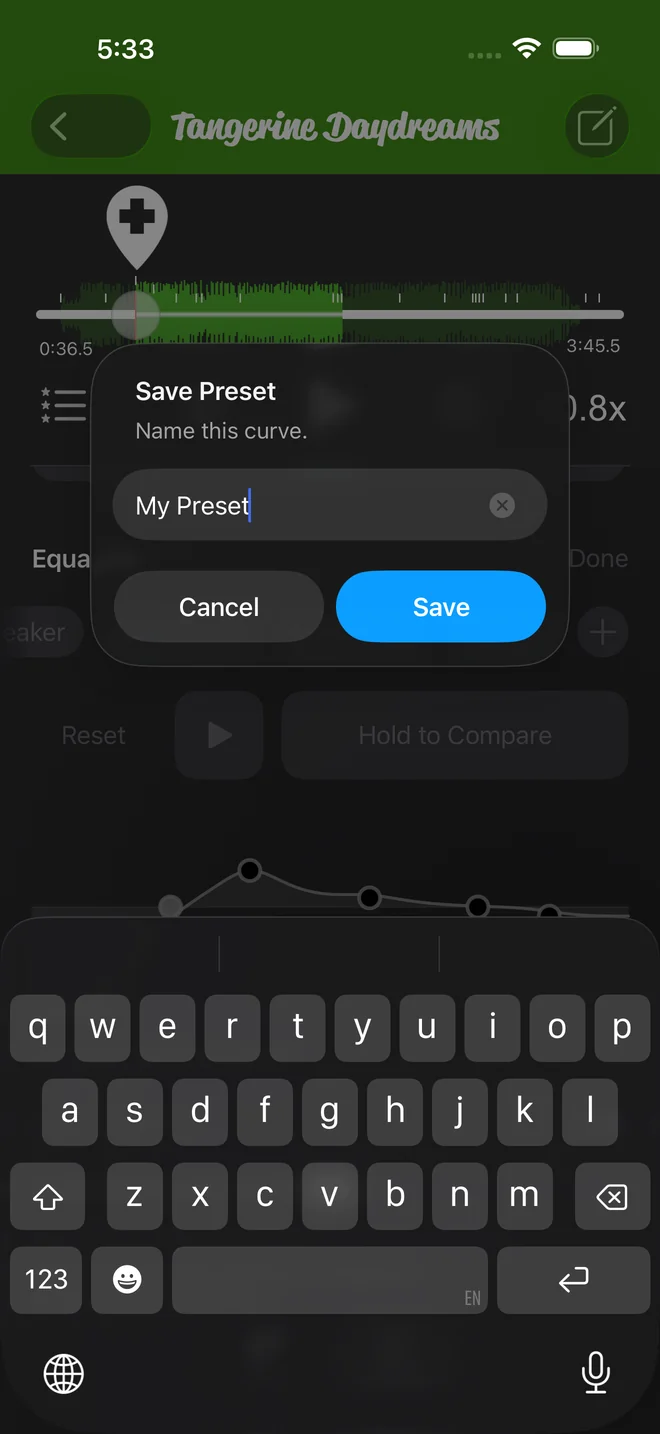
- Tap the + chip.
- In Save Preset, type a name and tap Save.
- Your preset is now a chip of its own, selected whenever a song's curve matches it, and you can tap it on any other song too.
Long-press a saved chip to Rename or Delete it.
The equalizer is saved with each song, like speed and pitch. Open the song again and its curve is still there.
Which songs it works on
The equalizer works on files the app can read, which means songs you import, your own recordings, and any purchases you have downloaded to the phone itself. Pitch and pan have the same limit.
It does not work on Apple Music subscription songs, streamed or downloaded. On those songs the preset chips are blurred and Edit is off. Tap the chips to see why.
Recordings you make in the app have no sound above 6 kHz. So with the usual settings the Treble band shows Not used. The other four bands work.
Boosts are leveled automatically so a raised band does not distort, and the equalizer works on top of any AirPods or Headphone Accommodations settings you already use. With Bass or Bass Focus on the phone's own speaker, the editor says Tuned for the built-in speaker. A phone speaker plays very little low bass, so these two presets work differently there.
The EQ setting in the iOS Settings app, under Music, is a separate control. It does not change the songs Practice Player plays from your own files.
Practice Player is free to download, with a paid upgrade for unlimited songs and points.