Change the look of Practice Player with a theme
You stare at this app for an hour a day. It might as well look like your practice room. Practice Player has a theme picker with three built-in looks and a set of photos, drums and cellos and mics and records, that sit behind your song list.
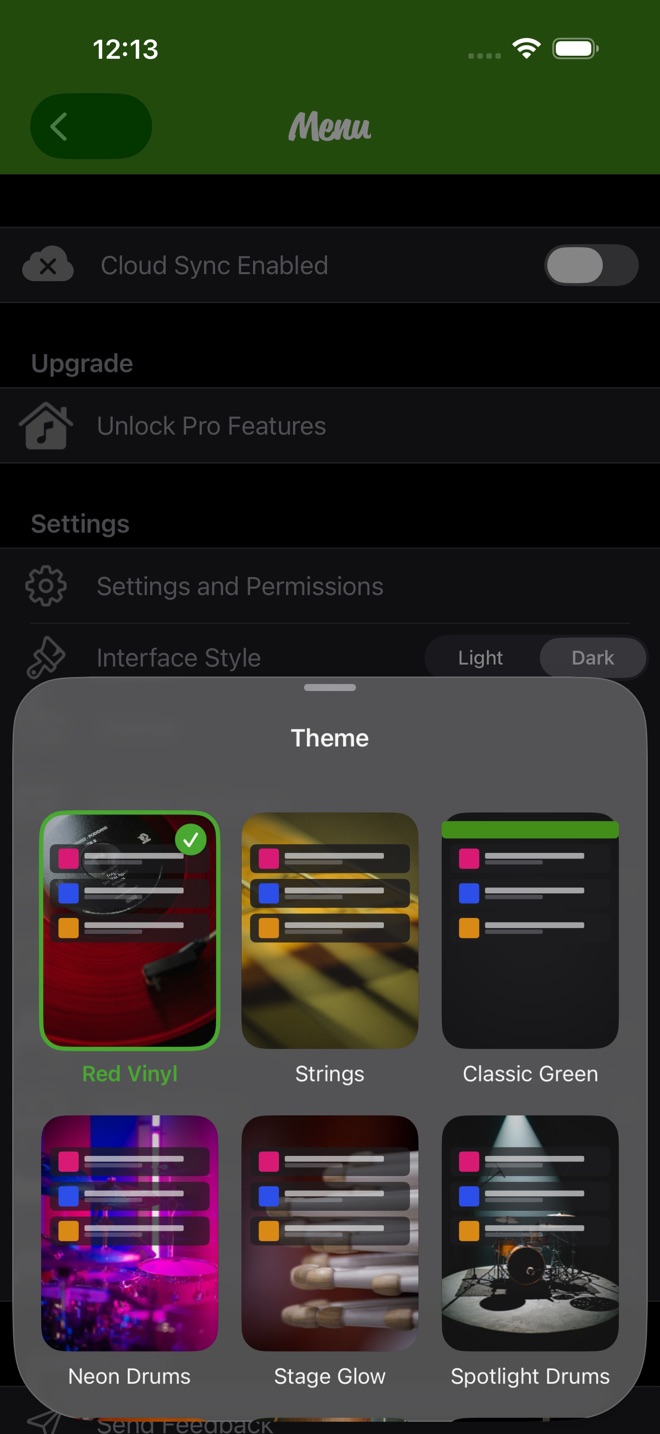
Open the theme picker
- On the song list, tap the menu button at the top left.
- Under Settings, tap Theme.
- Tap a card. The theme applies right away, or as soon as its photo downloads. The one in use has a green check.
The ⋯ menu on the song list has Theme too, if that is closer to your thumb.
Pick a photo
The first three cards are built in: Red Vinyl, Strings and Classic Green. The rest are photos. On every theme except Classic Green, a photo fills the screen and your songs sit on see-through cards on top of it.
Each photo downloads the first time you tap it. You'll see the download progress with an x to cancel, and the theme applies when it's done.
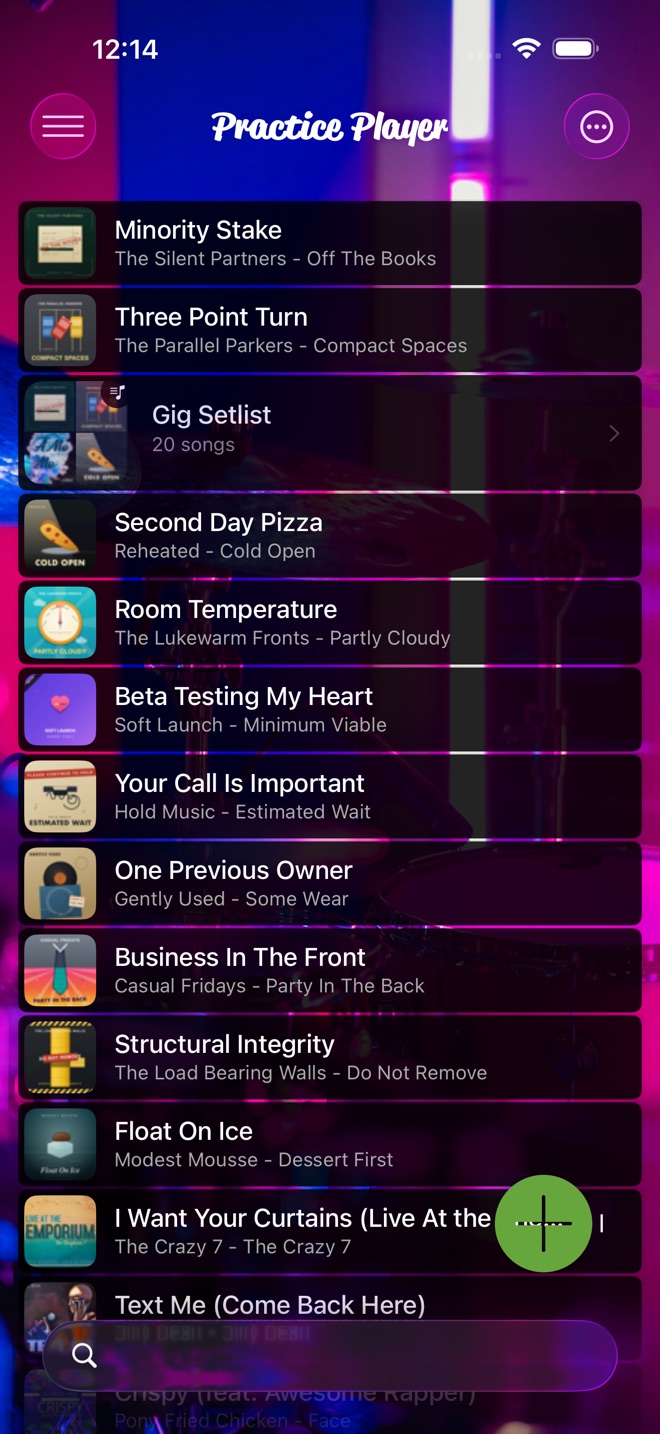
Photo themes need iOS 26
On iOS 18 and earlier the picker shows the three built-in themes only. Update to iOS 26 and the photos show up.
Light or dark is a separate setting. Interface Style sits right above Theme in the menu.
Practice Player is free to download, with a paid upgrade for unlimited songs and points.