How to move a practice point to a new time on iPhone
You tap the + a hair late and the point lands just after the downbeat. Now every pass through the loop starts with half a note missing, and you hear it every time you go around, which gets old fast when you're trying to lock in the first beat. Don't delete it. Move it.
See it first
Here it is. Long-press a point, pick Move Point, nudge it, and tap Write. The list puts the point back in order and lights it up so you can see where it went.
If you haven't set up a loop yet, start with how to loop the hard part. This guide picks up once you have points.
Pick the point to move
- Open the song and tap Points.
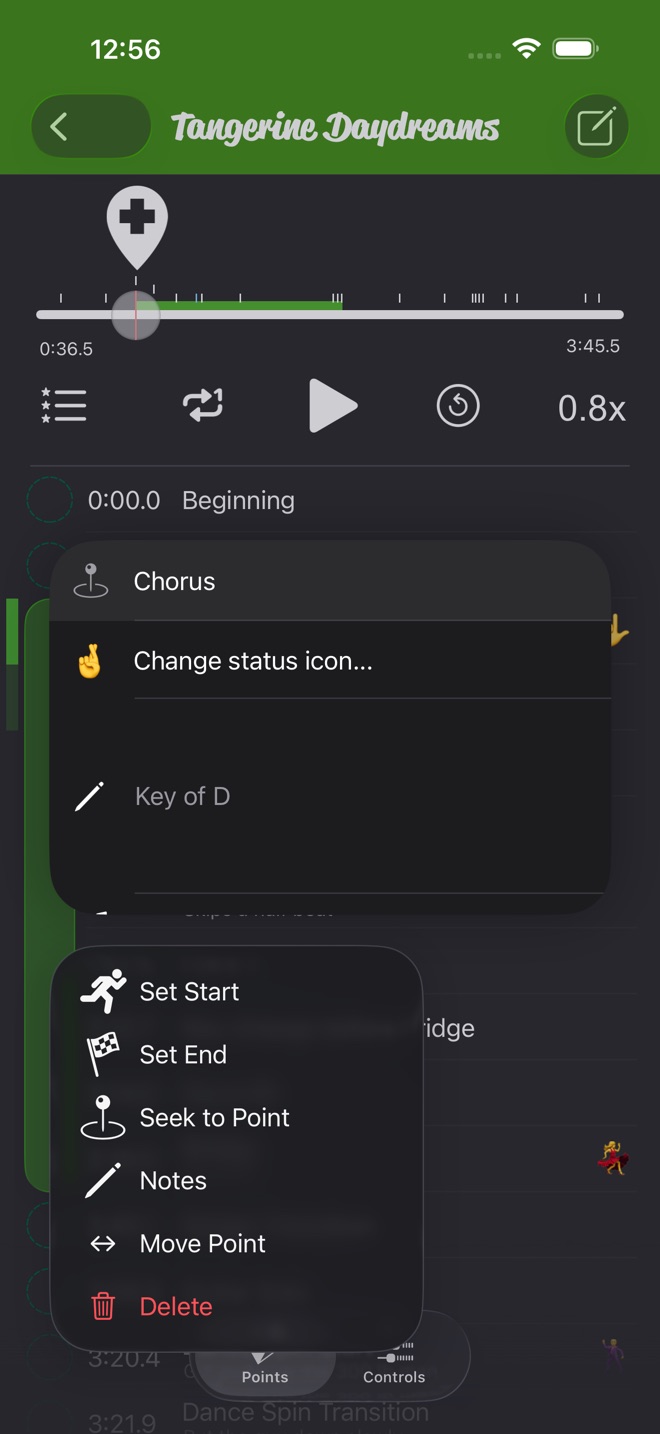
- Long-press the point and choose Move Point.
There are other ways in. Tap the point and pick Move Point from the alert (when Point Tap is set to Options Popup, the default), swipe the point left and tap the left-right arrows, or open its notes and tap the Move Point row.
Beginning and End are the only two you can't move. They stay at the very start and end of the song.
Drag it or nudge it
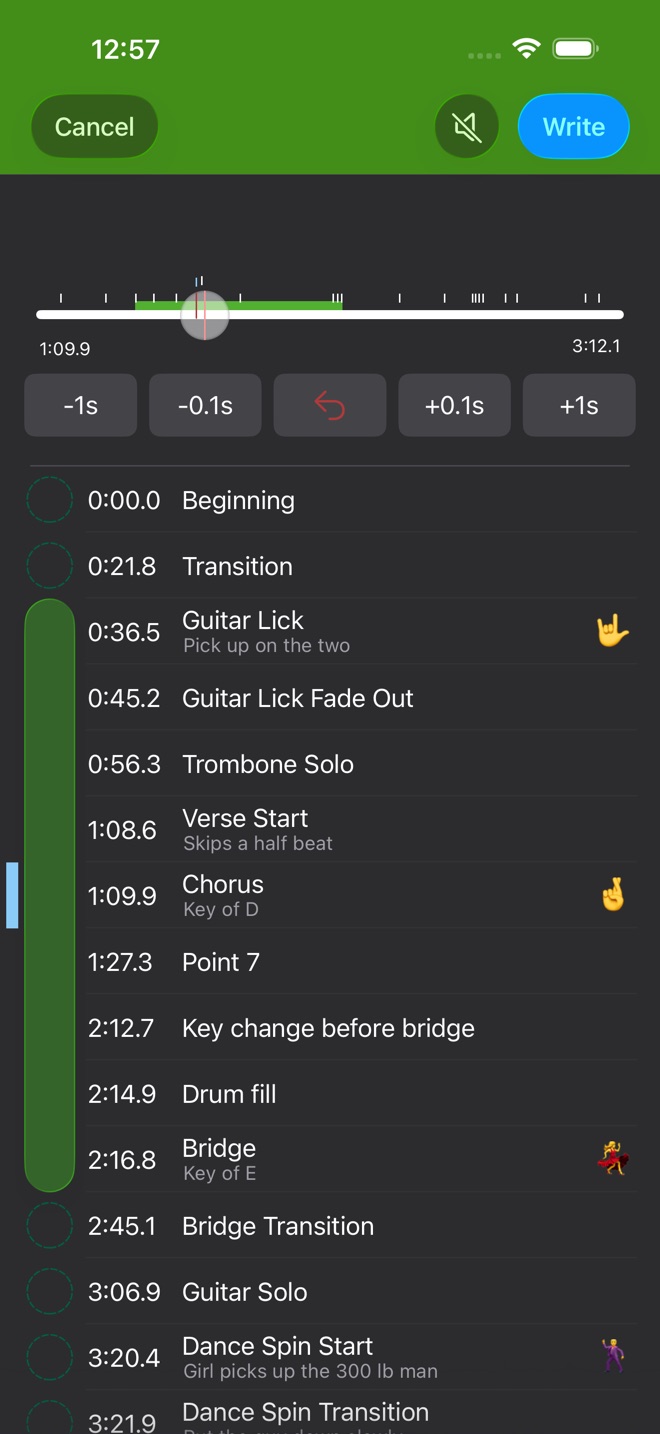
Playback pauses and the player switches to move mode. A light blue bar marks the point's row, and a red mark on the slider shows where it started.
- Drag the slider thumb. The point rides along with it, and the time under the slider shows where it will land.
- Nudge it with the buttons under the slider: -1s, -0.1s, +0.1s and +1s. I drag to get close, then nudge by tenths.
- The red arrow in the middle puts it back where it started.
You can drag a point past its neighbors. Its row moves up or down the list as it goes. Two points can't sit closer than a tenth of a second, so the point always stays at least that far from any other.
Write it, or cancel
Nothing changes until you tap Write. Then the point takes its new time, its row flashes yellow, and the player goes back to normal. Cancel leaves the point where it was. No harm done.
The speaker next to Write turns on sound while you move. It starts off. With it on, you hear a short clip from the new spot each time you let go or tap a nudge button. On an imported file, a recording or a downloaded purchase, you also hear the music under your finger as you drag. The app remembers the setting for every song.
Move the start or end of the loop
The loop's start and end points move the same way. The green loop range on the slider follows the thumb, so you can see the new loop before you commit. The mark where the point started is green for the start point and yellow for the end point.
If you drag the start point past the end point, they trade places when you tap Write. The loop is still the stretch between the two.
This is the fast way to widen a loop by a bar. Before, I'd add a new point and Set Start on it. Now I move the start back.
Practice Player is free to download, with a paid upgrade for unlimited songs and points.